
There are four types of dashboards in LogPoint.
My Dashboards: The dashboards you created. From the Actions column, you can Clone, Share/Unshare, Lock/Unlock, and Delete the dashboards.
Used Dashboards: The dashboards you used.
Shared Dashboards: The dashboards shared by other users in the system. Click the Use icon in the Actions column to use the dashboards.
Vendor Dashboards: The dashboards provided to you by LogPoint. To use these dashboards in your system, click the Use icon in the Actions panel. To clone the dashboards, click the Clone icon.
Go to Settings >> Knowledge Base from the navigation bar and click Dashboards.
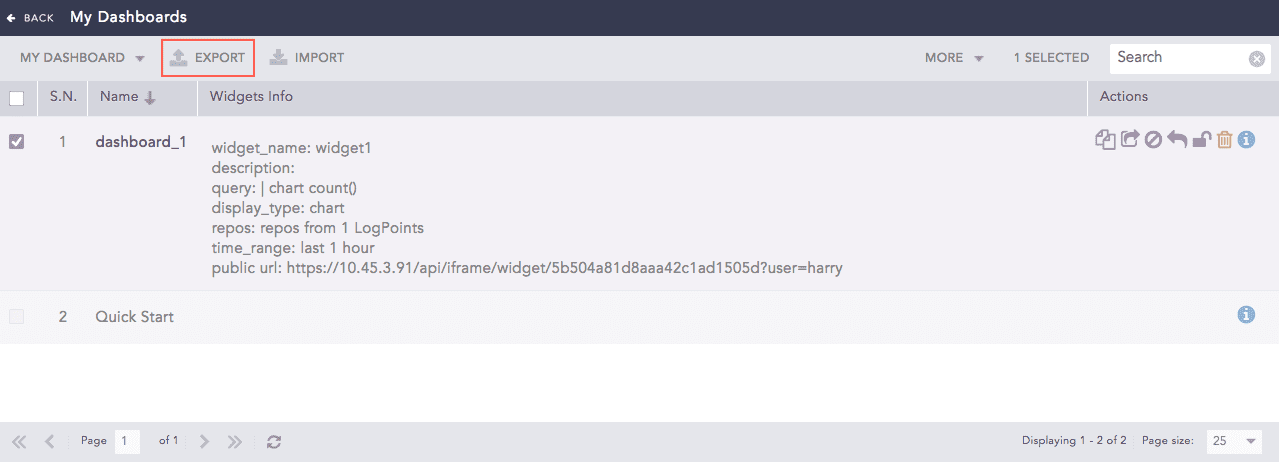
Dashboards
Select the dashboards that you want to export.
Click Export.
Save the pak file as a backup or store in the computer system to use it in another LogPoint.
Go to Settings >> Knowledge Base from the navigation bar and click Dashboards.
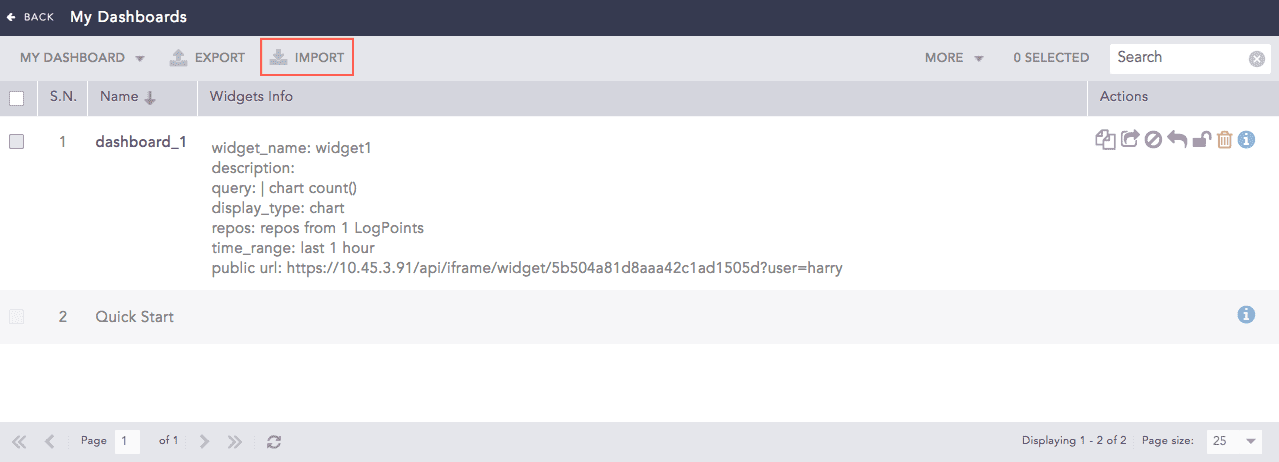
Dashboards
Click Import.
Browse and upload the pak file containing the dashboards to import.
Click Upload.
Note
Once you use a shared dashboard, its copy appears in the My Dashboards page. You can edit and share this dashboard with other users. If you need the initially shared dashboard version, delete your copy of it and make a new copy of the same dashboard from the Shared Dashboard tab. The same applies to the dashboards from the vendor section.
You can drag and drop the widgets from one dashboard to another. However, you must avoid dropping the widgets into a locked dashboard.
Dashboards lists all the dashboards created in the LogPoint. It also displays the information of the widgets in each dashboard.
You can switch among My Dashboards, Used Dashboards, Vendor Dashboards, and Shared Dashboards from the drop-down at the top-left corner of the panel.
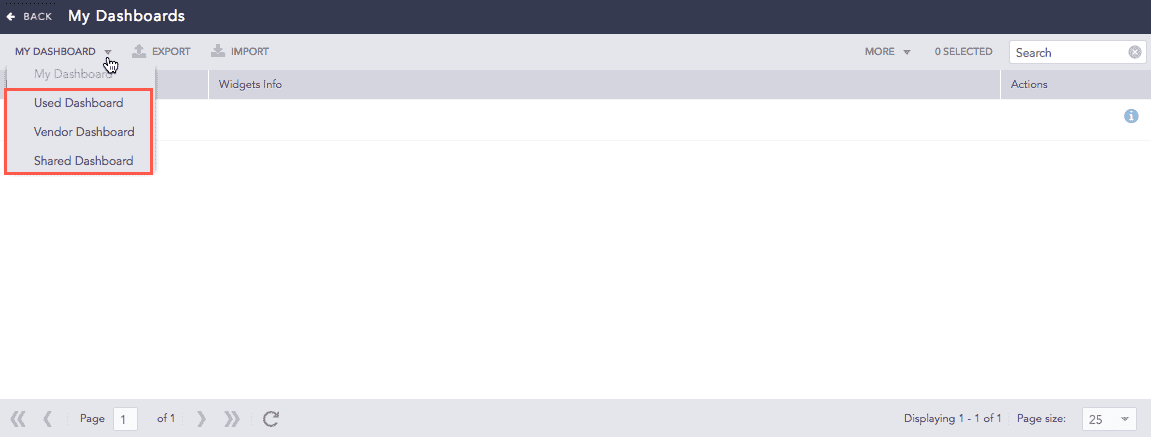
Click Export and Import to export and import the dashboards respectively as per your requirements.
You can clone, share, unshare, lock, unlock, and delete dashboards using the corresponding icons in the Actions column or from the More drop-down menu at the top-right corner of the panel. Furthermore, you can view all the related information of a dashboard by clicking the Details icon.